
Select your language

  • Français (France)
  • English (United Kingdom)
  • Español
  • Italiano
  • Deutsch

Start by installing NFC Tools so you can write to your NFC chip.

Android iOS

Once installed, open the NFC Tools app:

1 - Go to "Write" then click on "Add a record".

“Write” in NFC Tools on Android and iOS: tap “Add a record”

2 - Scroll down and click on "Social networks" (eg: Instagram).

Record types in NFC Tools on Android and iOS: tap “Social networks”

3 - Choose your social network.

Social networks in NFC Tools on Android and iOS: choose Instagram

4 - Enter your username then click on "OK".

Instagram record in NFC Tools on Android and iOS: username “wakdev”, then OK

5- Click on "Write / X Bytes".

“Write” tab of NFC Tools on Android and iOS with the Instagram record: tap “Write”

6 - Bring your NFC chip close to your smartphone and wait for the writing to be complete.

Writing in NFC Tools on Android and iOS: bring the NFC chip close to the smartphone

7 - Your profile address is now written in your NFC chip.

Writing complete in NFC Tools on Android and iOS

7 - Go to the Home screen to scan your NFC chip: your profile address will appear in your social network application.
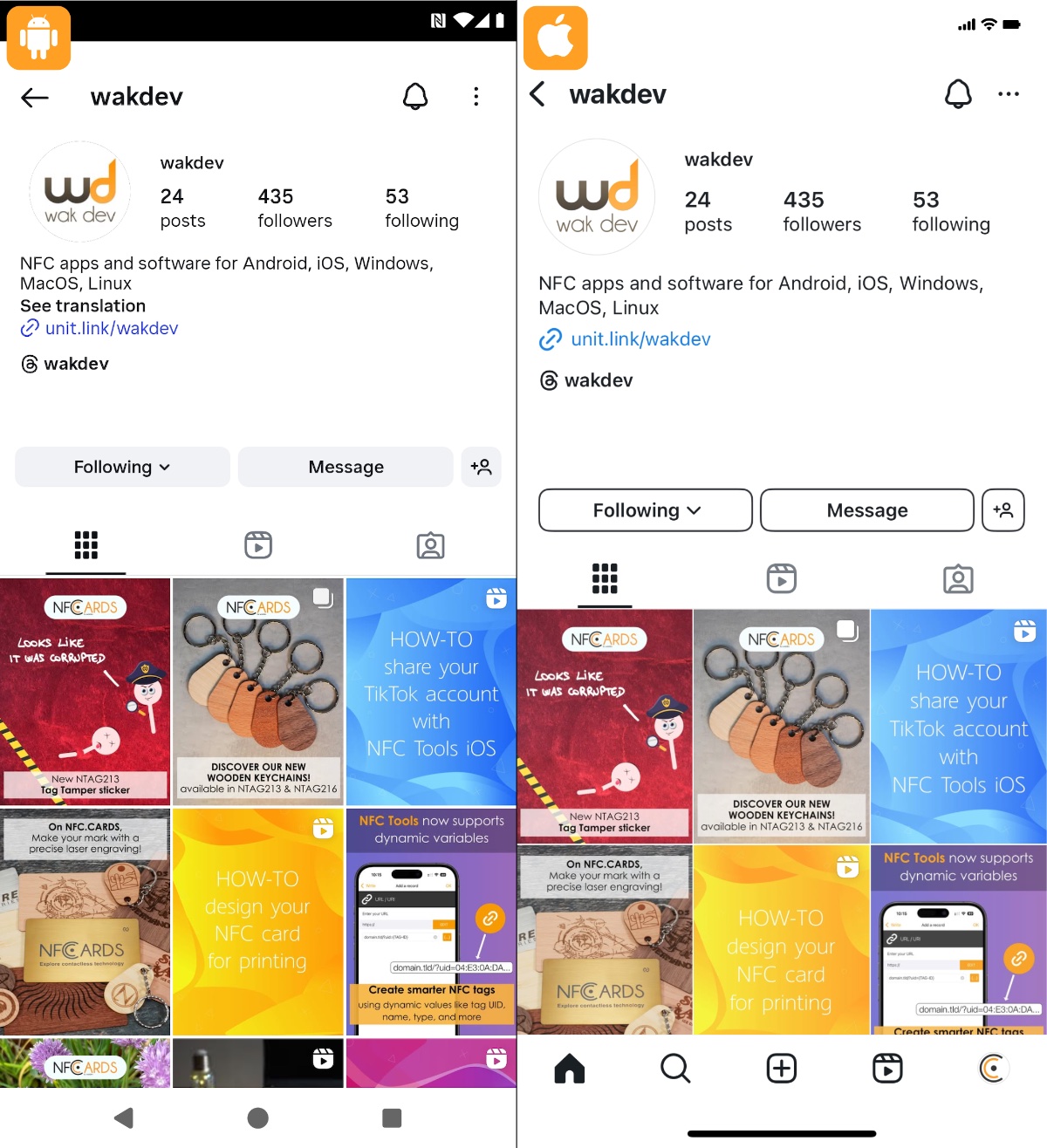

Chip scanned: the wakdev Instagram profile opens on Android and iOS

About

Creator of innovative solutions
Android | iOS | Web | NFC

Keep in touch

Reddit Instagram YouTube Bluesky X (Twitter) Facebook Threads LinkedIn Mastodon Newsletter